
Noki Bot – Zoom App Customer Training Guide
1. Overview
Noki Bot integrates with Zoom to automatically record, transcribe, and generate SOAP notes from your telehealth sessions — saving time and improving documentation accuracy.
⚠ Important Requirement:
Your Zoom account and Noki account must use the same email address.
If they don’t match, Noki Bot will not work.
2. Getting Started – Account Setup
Step 1: Create a Zoom Account (if you don’t have one)
-
- Go to Zoom Sign Up.
- Enter your email address and complete the sign-up process.
- Verify your email by clicking the link Zoom sends you.
- Log in to your Zoom account.
Step 2: Create a Noki Account (if you don’t have one)
- Go to Noki Sign Up
- Use the same email address as your Zoom account.
- Complete the registration form and set a secure password.
- Verify your email by clicking the link sent from Noki.
- Log in to your Noki account.
Step 3: Confirm Email Match
- Double-check that both accounts use the exact same email address (including spelling and domain).
3. Installing Noki Bot from Zoom Marketplace
- Sign in to the Zoom App Marketplace
Visit Zoom App Marketplace and log in. - Search for Noki Bot
Type “Noki Bot” in the search bar. - Open App Details
Click on Noki Bot to view details. - Click “Add”
Select Add at the top of the page. - Authorize Access
You will be prompted to grant Noki Bot permissions.
These permissions are collected while adding Noki Bot into your Zoom account and are required for it to function properly. - Installation Complete
Noki Bot is now linked to your Zoom account.
4. Starting and Using Noki Bot in Meetings
Before the Meeting
- Schedule your meeting in Zoom.
- Share the meeting link/ID with your patient.
During the Meeting
- Join the Zoom meeting as the doctor. The patient should join as well.
- Log in to Noki (doctor’s account).
- In Noki, create a new patient (if not existing) or open an existing patient record.
- Go to Encounters → choose Zoom Telehealth (instead of normal scribing).
- Copy and paste your scheduled Zoom meeting link (or enter Meeting ID and password) into Noki.
This is the same link you shared with the patient. - Click Start in Noki.
- Noki Bot will take a short time to join the Zoom meeting. (In 30sec – 1 Min)
- Consent Notification:
- When Noki Bot joins, Zoom will announce: “This meeting is recording.”
- All participants will get a pop-up to confirm. They can click OK to stay or leave if they do not consent.
- Doctor, patient, and all participants should wait until Noki Bot has joined before starting the consultation.
- Conduct your session normally.
- Important: If the Zoom call ends within 2 minutes or less, Noki will not generate a SOAP note.
- That encounter will appear as a draft in Noki.
- Draft encounters cannot be resumed.
- When the conversation is finished, the host ends the call.
After the Meeting
- Go back to the Noki application.
- You will see status updates:
- Bot joined
- Zoom meeting in progress
- SOAP note generating
- Wait for the SOAP note to be created
(This may take a moment, 2-3 minutes depending on the conversation length).
- Once generated, the doctor can review the SOAP note, finalize it, and use it in the EHR.
5. Removing Noki Bot (If Needed)
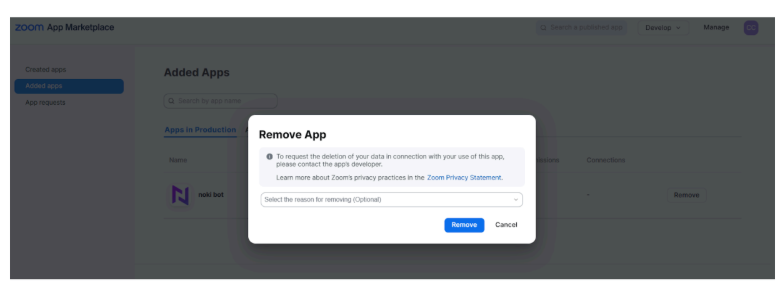
- Go to Zoom App Marketplace and sign in.
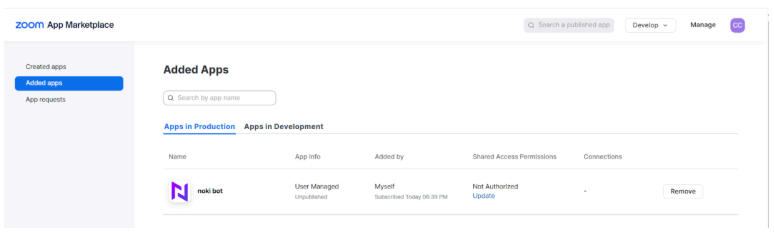
- Click Manage in the top right.
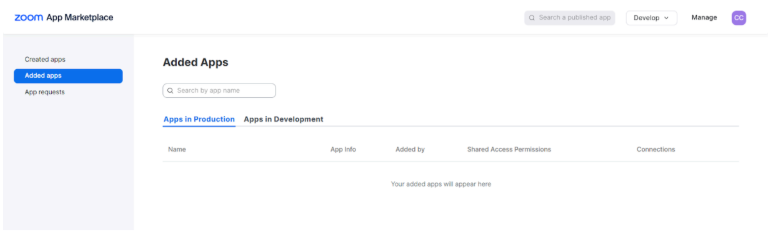
- Select Added Apps from the left menu.
- Find Noki Bot and click Remove.
- Confirm removal.
6. Permissions Noki Bot Uses & Why
(Collected during Zoom authorization step when adding Noki Bot)
| Zoom Permission | Purpose in Noki |
|---|---|
| user:read:user / user:read:settings | Verifies your identity and links accounts. |
| meeting:read:list_meetings | Finds and joins your scheduled meetings. |
| zoomapp:inmeeting | Appears as a participant during meetings. |
| meeting:read:participant | Tracks participants and confirms bot presence. |
| cloud_recording:read / meeting:read:local_recording_token | Accesses recordings for transcription. |
| meeting:read:summary / meeting:read:participant_feedback | Contextualizes notes with attendance and feedback. |
| user:update:settings | Lets you manage preferences and EHR settings. |
Quick Tips for Best Results
- Always make sure Zoom and Noki emails match before setup.
- If the call is less than 2 minutes, no SOAP will be generated.
- Wait for Noki Bot to join before starting the consultation.
- Use a high-quality microphone for better transcription accuracy.
- Review SOAP notes before finalizing in your EHR.